Guide to doubleTwist Music Player Settings on Android
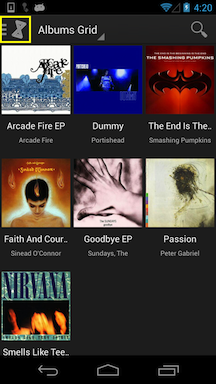
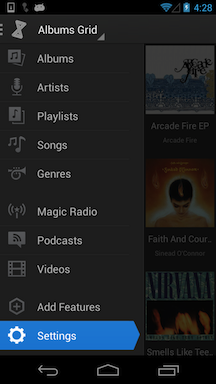
To access Settings, please tap on the doubleTwist icon in the upper left and the menu will slide out. Then tap on "Settings".
- General Settings
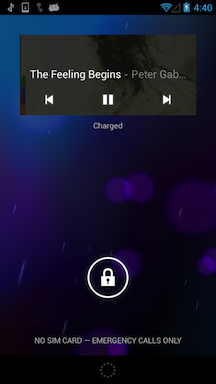
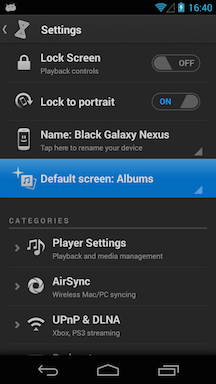
- "Lock Screen" will enable the custom doubleTwist lockscreen. This option is disabled by default on all "pure Google" devices such as the Nexus 4 and Nexus 5 as they offer integrated lockscreen controls provided by the Android operating system. On all other devices, this option is enabled by default so that the custom doubleTwist lockscreen appears in addition to the system lockscreen. On the doubleTwist lockscreen, you can swipe on the artwork to advance or rewind tracks.
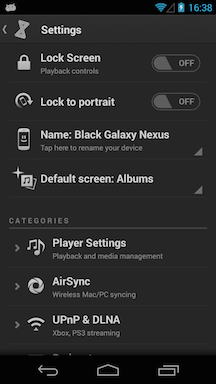
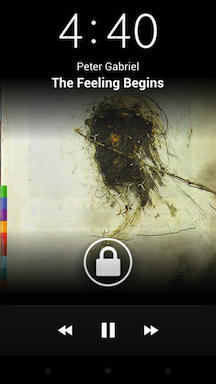
- "Lock to portrait" will ensure that the doubleTwist Player interface will remain in portrait orientation only and not switch to landscape orientation if you tilt your device sideways.
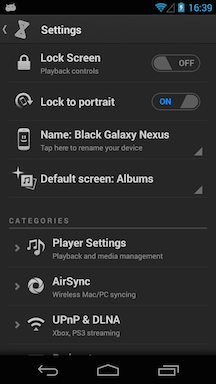
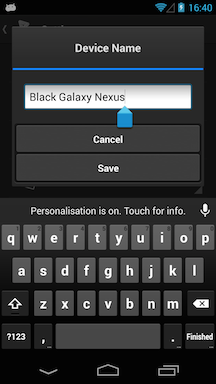
- Use "Name:" to enter a name for your device for easy reference when using your device and your computer for syncing.
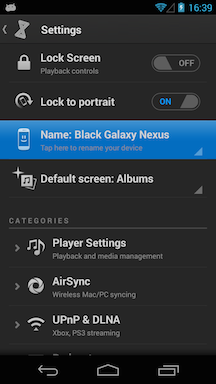
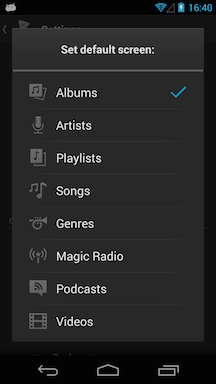
- Set "Default screen:" to make that section appear when you launch doubleTwist Player. This option is only available to doubleTwist Pro users.
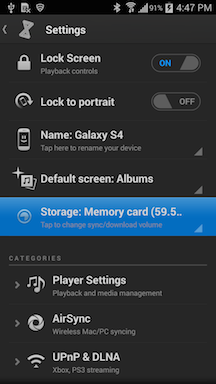
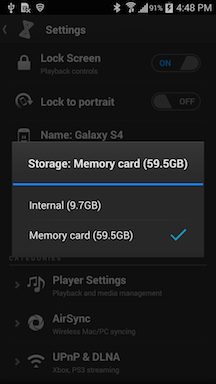
- On "dual storage" devices like the Samsung Galaxy S4 with both internal user storage and external memory card, the "Storage:" setting will appear. This lets doubleTwist Player know where your media files are stored and which location to transfer files to during syncing. Available options are "Internal" and "Memory card". This will also set which storage location appears when syncing. Please see this help page for more information. This option will not appear for devices that are not "dual storage" with both internal user storage and external memory card.
- "Lock Screen" will enable the custom doubleTwist lockscreen. This option is disabled by default on all "pure Google" devices such as the Nexus 4 and Nexus 5 as they offer integrated lockscreen controls provided by the Android operating system. On all other devices, this option is enabled by default so that the custom doubleTwist lockscreen appears in addition to the system lockscreen. On the doubleTwist lockscreen, you can swipe on the artwork to advance or rewind tracks.
- Player Settings
- "Scrobble to Last.fm" will enable the sending of track playing data to your Last.fm account. If you do not have the Last.fm app installed, no information will be sent.
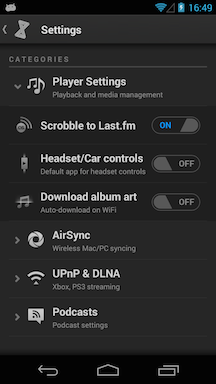
- "Headset/Car controls" will allow you to control doubleTwist Music Player using a headset with button controls or with a Bluetooth controller. Single-click to play/pause, double-click to advance, and triple-click to rewind. Please also see this help page for more information.
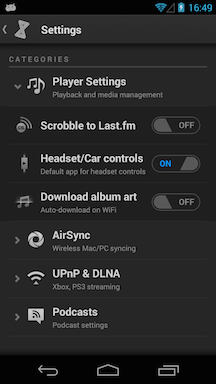
- "Download album art" will enable automatic artwork downloading when the device is connected to a WiFi network if you have the Music Lover upgrade package. Disabling this option means that you will manually download artwork with Music Lover. Please see the Music Lover and artwork help pages for more information.
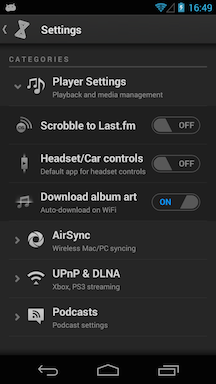
- "Scrobble to Last.fm" will enable the sending of track playing data to your Last.fm account. If you do not have the Last.fm app installed, no information will be sent.
- AirSync
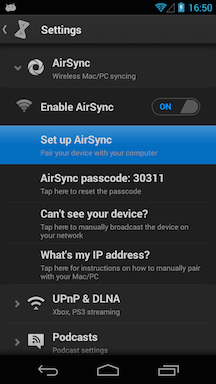
- "Enable AirSync" will enable the AirSync service on your Android device. AirSync allows for wireless Android iTunes sync of media and playlists from your computer to your device.
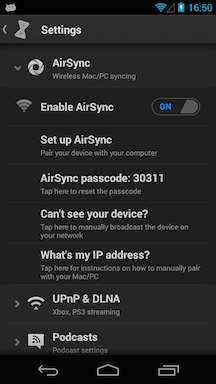
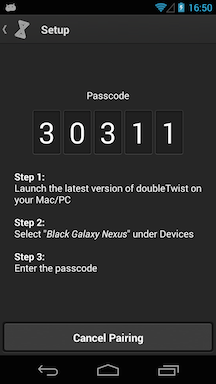
- "Set up AirSync" will bring up the AirSync pairing screen, which will also broadcast the presence of your device on the network.
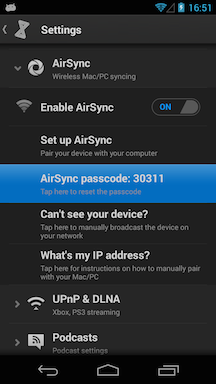
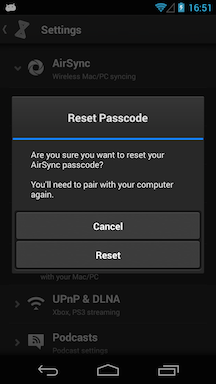
- "AirSync passcode:" will reset the current AirSync passcode to a new random passcode.
- "Can't see your device:" will broadcast the presence of the AirSync device on the network.
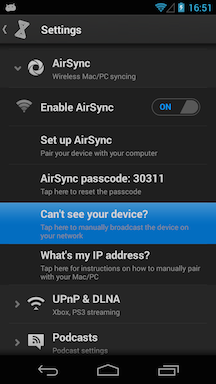
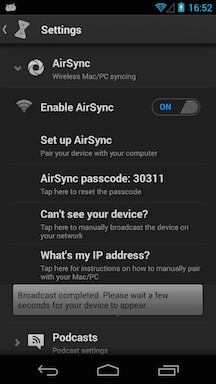
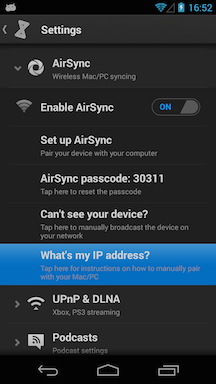
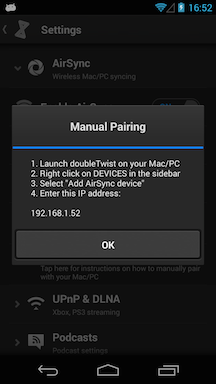
- "What's my IP address?" will display the device's current IP address for manual pairing of the device to the computer.
- "Enable AirSync" will enable the AirSync service on your Android device. AirSync allows for wireless Android iTunes sync of media and playlists from your computer to your device.
- UPnP/DLNA
- "Enable Streaming" will make UPnP/DLNA active on your device. You must also have "Allow WiFi network" enabled if you want UPnP/DLNA to work on this network. Please see the UPnP/DLNA help page for more information.
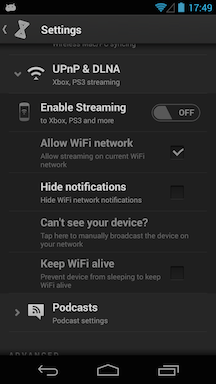
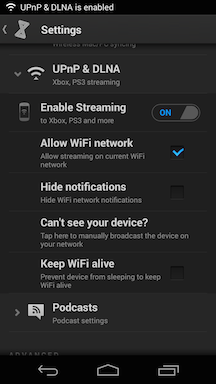
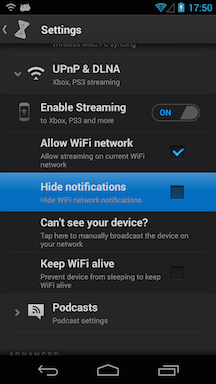
- "Hide notifications" will disable the reminder notifications to "Allow WiFi network" when a new WiFi network is detected.
- "Can't see your device?" will broadcast the presence of the UPnP/DLNA device on the network.
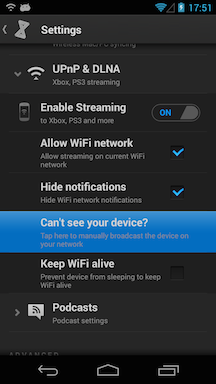
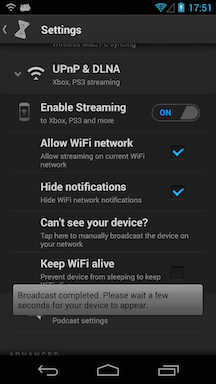
- "Keep WiFi alive" will generate a wakelock, keeping the back light on. This will prevent the device from sleeping as many devices will slow down the WiFi throughput during sleep.
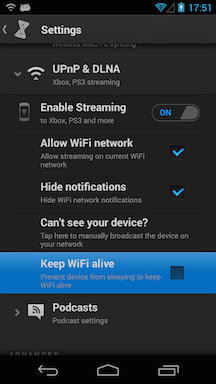
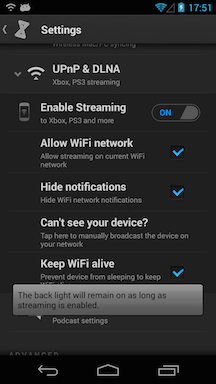
- "Enable Streaming" will make UPnP/DLNA active on your device. You must also have "Allow WiFi network" enabled if you want UPnP/DLNA to work on this network. Please see the UPnP/DLNA help page for more information.
- Podcasts
- Please see this podcast help page for more information on the options in this section.
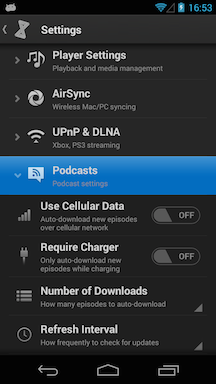
- Please see this podcast help page for more information on the options in this section.
- Advanced
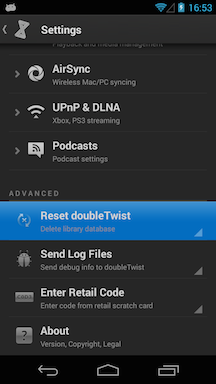
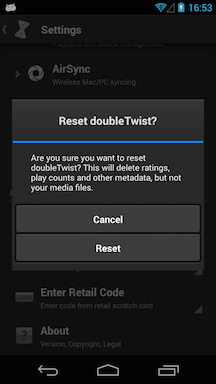
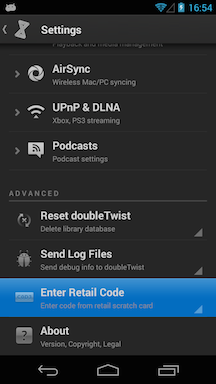
- "Reset doubleTwist" will erase the current database and import information from the Android Media Scanner database. This option can be used if your current doubleTwist library contain incomplete information on your media files or you are missing synced playlists. Any play count and ratings information stored only on your Android device will be lost. Any information that's already on your computer will be unaffected. Playlists and music files stored on your device will also be unaffected.
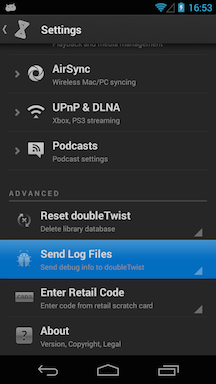
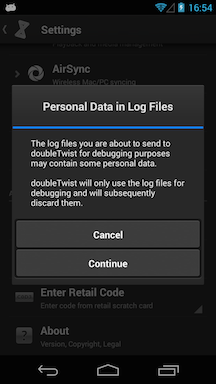
- "Send Log Files" will generate a debug package containing logs and databases for emailing to doubleTwist support. These log files and databases will make diagnosing any reported issues easier. Please only send a debug package immediately after the problem has occurred as Android will overwrite log entries if too much time has passed. Also, please include as much information as possible in your problem report, including steps to reproduce the issue. Saying only "It doesn't work" makes diagnosing the problem very difficult.
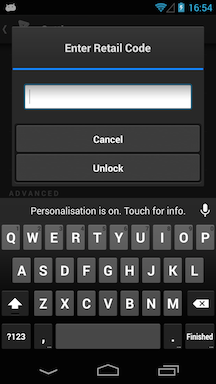
- "Enter Retail Code" will bring up a dialog where you can enter a promotional unlock code given to you by doubleTwist. You do not need a retail code for purchased upgrades. In-app purchased upgrades will automatically unlock once your device has authenticated successfully with our servers. See this help page for more information.
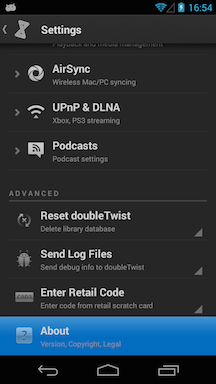
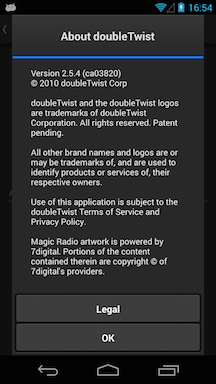
- "About" will bring up a dialog with version, copyright and legal information on doubleTwist Player.
- "Reset doubleTwist" will erase the current database and import information from the Android Media Scanner database. This option can be used if your current doubleTwist library contain incomplete information on your media files or you are missing synced playlists. Any play count and ratings information stored only on your Android device will be lost. Any information that's already on your computer will be unaffected. Playlists and music files stored on your device will also be unaffected.